|
Starting the program
On the Main Menu, click the Transactions tab then click Manage Transactions - BS421
The initial screen shows
a list of any transactions which you have already added (if any)
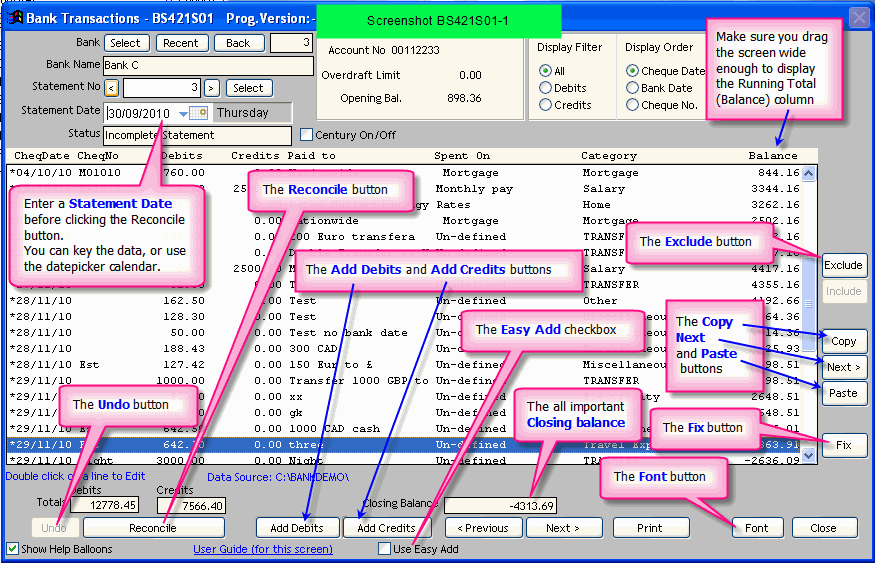
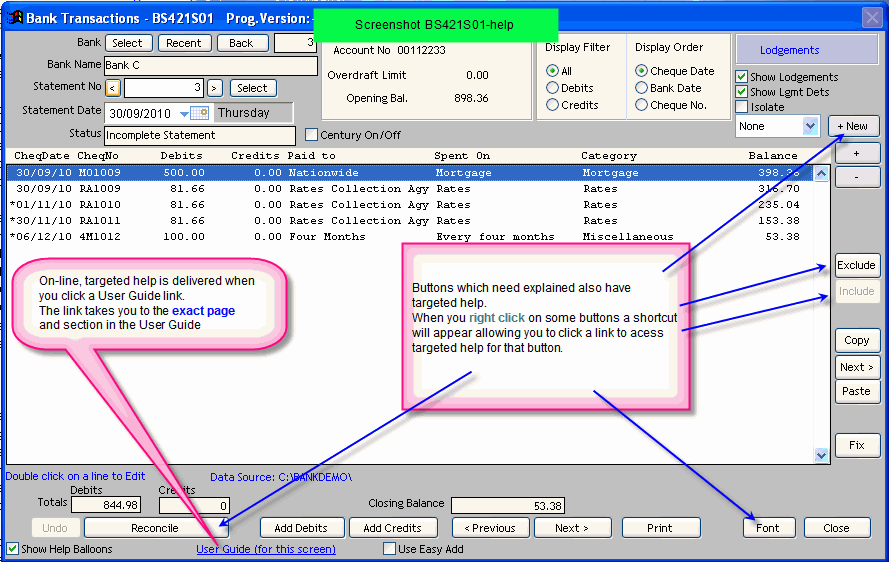
Screenshot BS421S01-1
In this section
Before using this program
Before using this
program you must:
- create at least one Bank Account (or Credit Card Account)
using the program My Bank Accounts - BS403
- create Categories using the program My Categories - BS420
Note: You can also add or edit Categories while adding or editing Transactions in BS421.
About this program
The program BS421 allows you to
manually input Bank and Credit Card transactions.
You can then manipulate and work with your bank transactions.
The program is designed to allow you to
organise your data in Statements.
If your Bank or Credit Card provider does not issue statement you may choose to think of statements as pages
The Font button
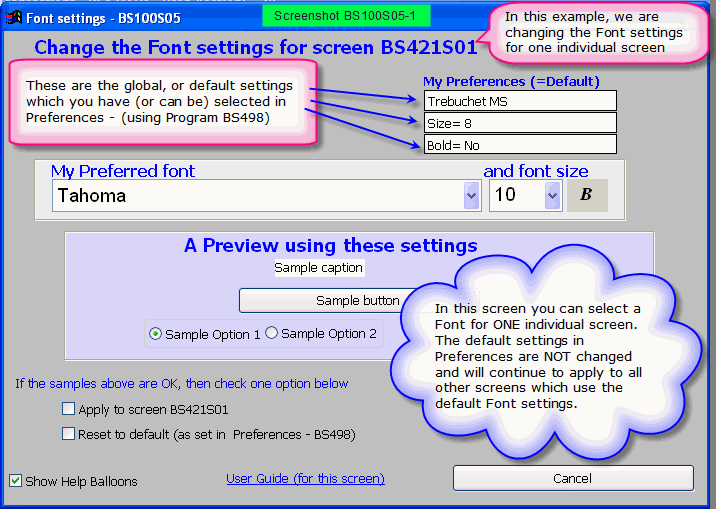
For this screen, the Font button
allows you to override the general Font and Font size set in Preferences. This screen (BS421S01) has many columns. If you have picked a large font in Preferences,
you may not be able to see all the the columns.
The column on the extreme right is Balance (which gives you a running total of your transactions).
If you
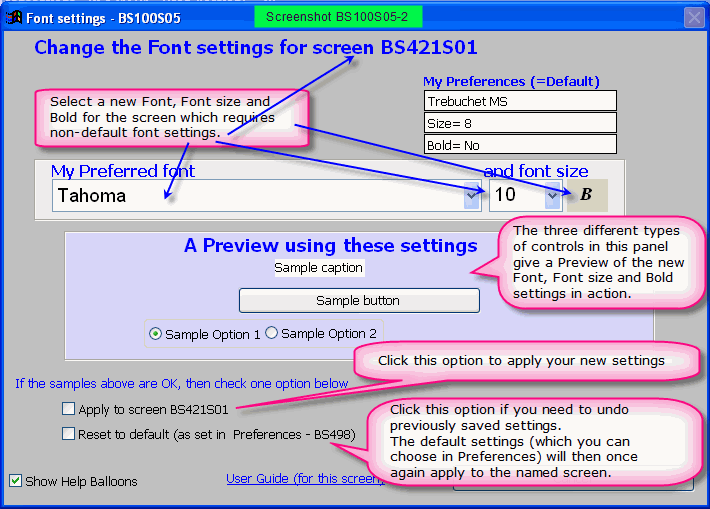
cant see that column, click the Font button and choose a smaller font for this screen ONLY.
Screen BS100S05 will appear. These screenshots explain what to
do.
Screenshot 1 Screenshot 2
Viewing and managing your transactions
You select and work with one Bank account, and
one Statement in this program
When you start this program, the default (Main) bank is displayed.
You can set the Main bank in program Bank Accounts - BS403
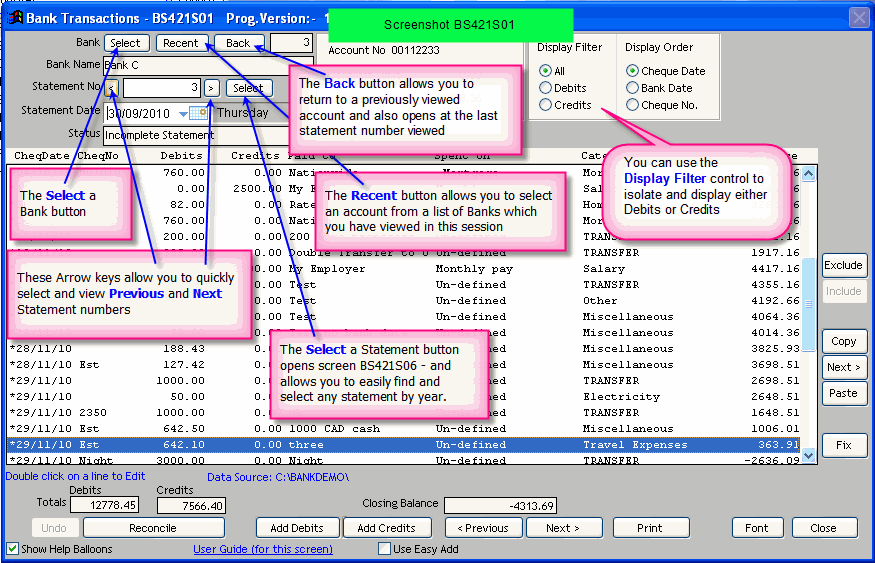
Referring to Screenshot BS421S01
- there are 2 Select buttons
- when you click the Bank Name Select
button, a screen BS421S04 appears with a list of your accounts, ready for selection.
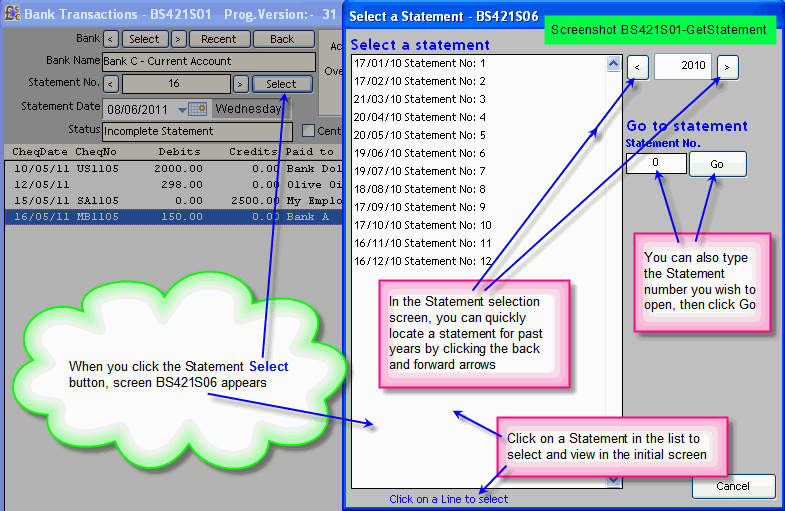
- when you click the Statement Select button, screen BS421S06 appears
Screenshot BS421S06-GetStatement
This screen shows one of the advantages of using Statements as you can quickly
locate any statement by year and by statement date
The Recent and Back buttons
Very often you are working in one bank account, and need to
make an enquiry in another Bank Account.
When you select another Account, Bank Genie saves the Bank and Statement Number of the account you had been working
with to a history log.
Thus you can use:
- the Recent button
Screenshot BS421S01
Click the Recent
button to view a list of the Accounts you have been working with.
You may then select an account from the list to return to the exact Statement Number you had previously been working on.
- the Back button
Screenshot BS421S01
Use the Back
button to re-visit the accounts you have been working with, in reverse order.
The program loops through the list.
Thus, when you reach the First Bank Account opened in the session, the program loops to the Last.
It differs from the Recent button in that you cannot select a Bank to revisit.
The Display Filter options
You can use the
Display Filter control to isolate and display either Debits or Credits
See Screenshot BS421S01
The Display Order options
lIn Bank Genie, each transaction can have two dates:
- The Transaction date - the date YOU made the transaction
- The Bank date - the date your transaction is processed by the Bank
This is the date which appears on your on-line statement
This control allows you to show the date of your choice in your list of transactions, and indexed by the chosen date field.
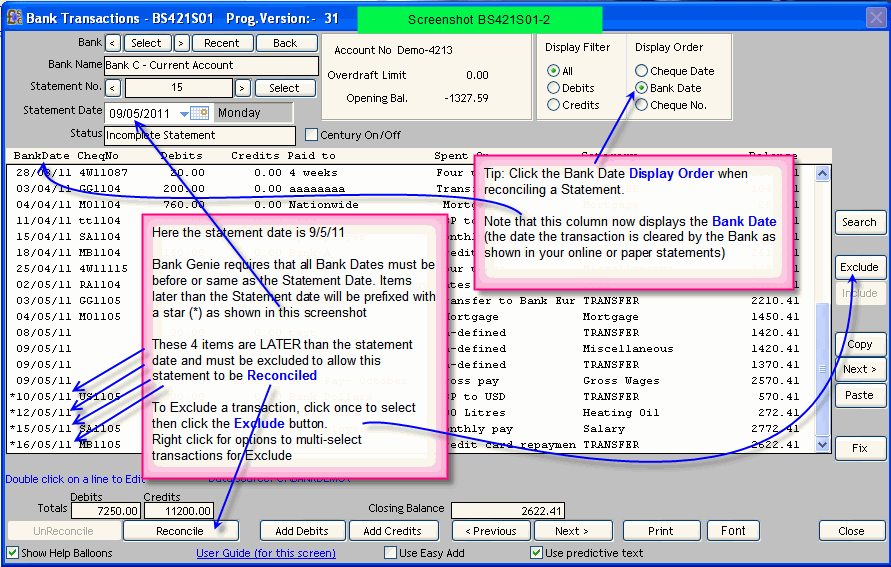
Screenshot BS421S01-2
The
display order will not necessarily be the same in both cases.
Tip: Click the Bank Date Display Order when reconciling a Statement.
See Screenshot BS421S01-2
This also allows you to spot data input errors in entering Bank Dates.
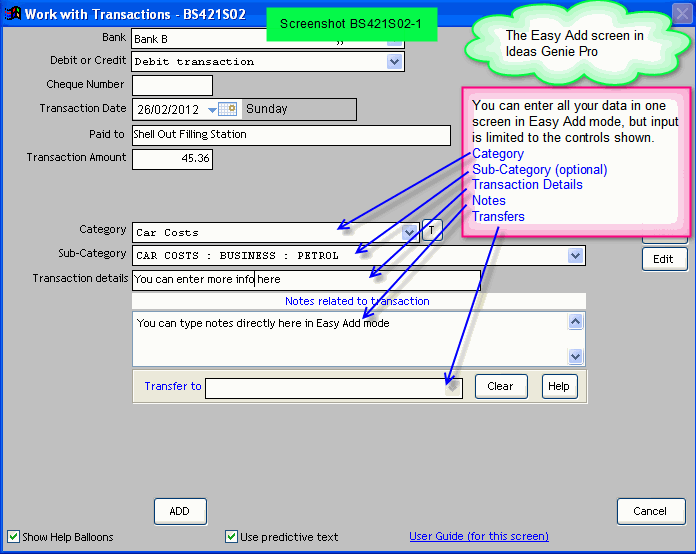
Adding - Simple transactions with Easy Add - Bank Genie Pro only
Simple transactions can be added and edited in one Easy Add work screen if:
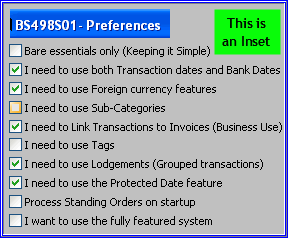
- The option I need to use Foreign Currencies is unchecked in Preferences
- The transactions do not have split elements
- The transactions do not need to be linked to Tags
In the initial screen (BS421S01)
To add a simple transaction (no spilt elements, no tags):
How to change the default setting for the Use Easy Add checkbox
The Use Easy Add checkbox:-
- is NOT visible when the option I need to use Foreign Currency features is selected
- is NOT used by Bank Genie 4 (its Easy Add already!)
The default setting for the Use Easy Add checkbox is OFF
(unchecked)
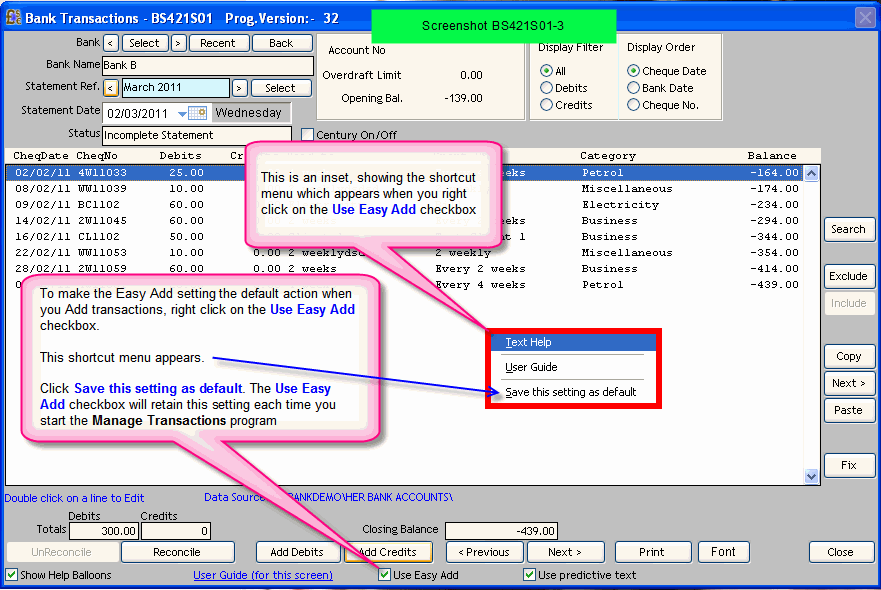
To change the default setting for the Use Easy Add checkbox:
- Set the Use Easy Add checkbox ON or OFF as required
- Right click on the Use Easy Add checkbox
- a shortcut menu appears
Screenshot BS421S01-3
- In the shortcut menu, click Save this setting as default.
The Use Easy Add checkbox will persist with this setting each time you start the Manage Transactions program
Adding transactions - Bank Genie Pro Only
In the initial screen (BS421S01)
To add transactions which may have split elements and which you may wish to identify with Tags
- Un-check the Use Easy Add checkbox
Screenshot BS421S01-1
- Click on the Add Debits or Add Credits button
(Also shown in Screenshot BS421S01-1)
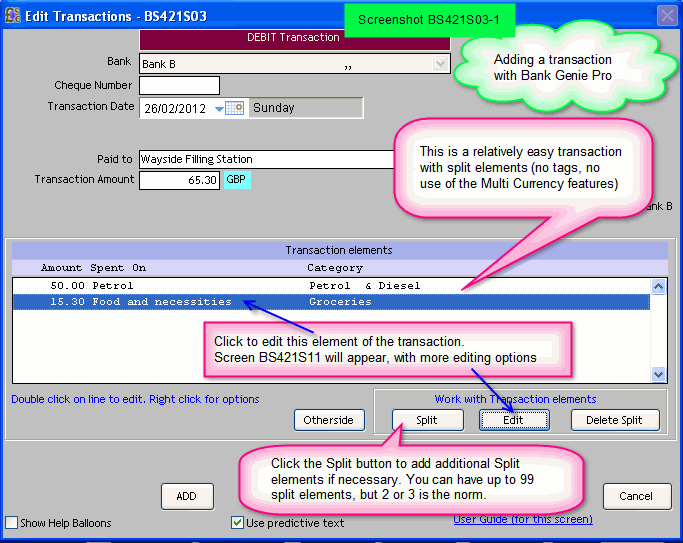
Screen BS421S03 will appear
Screenshot BS421S03-1
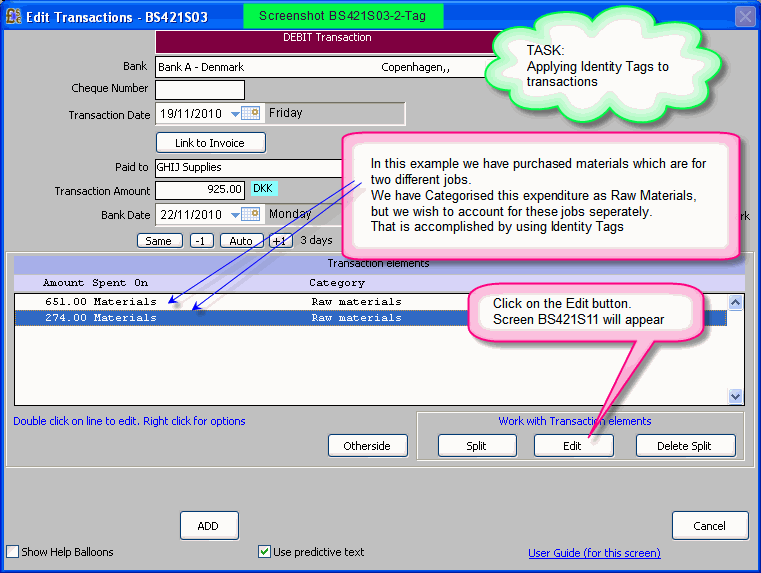
- Click the split button if necessary to enter a transaction similar to that shown
in Screenshot BS421S03-1
- To link your transaction to a Category, click on an element and click the Edit
button in the
Work with transaction elements panel
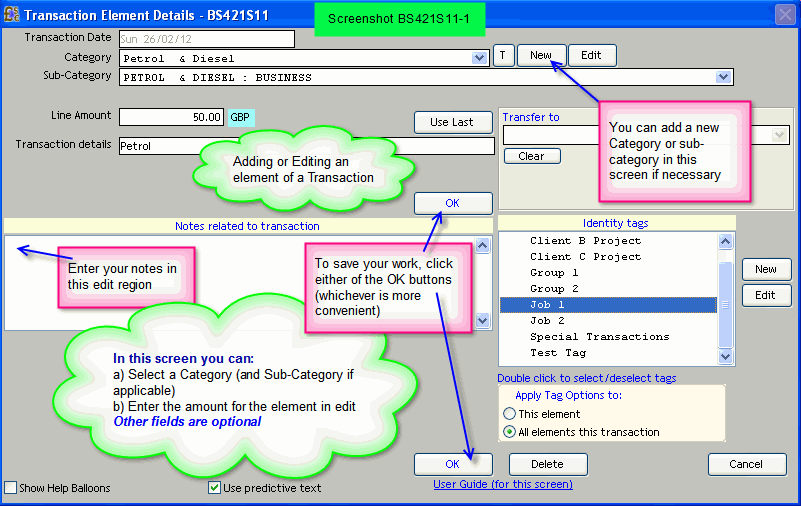
- Screen BS421S11 will appear.
Screenshot BS421S11-1
Select Category/Subcategory
If a split element, enter the
amount for the element.
Click an OK
button (there are two - pick the most convenient - they both do the same thing)
- Screen BS421S03 re-appears
Screenshot BS421S03-1
Click the Add
button
There are many variations to the type of transaction you can add using this method in Bank Genie Pro. These are explained by example in the User Guide page for Screen BS421S03
Adding transactions - Bank Genie 4
Bank Genie 4 has one simple method for adding and editing transactions
In the initial screen (BS421S01) click on the Add Debits
or Add Credits button
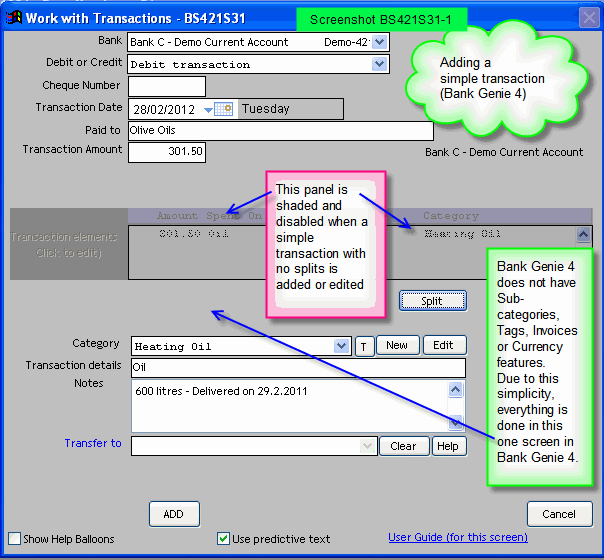
Screen BS421S31 will appear
Screenshot BS421S31-1
Bank
Genie 4 does not have Sub-categories, Tags, Invoices or Currency features.
Due to this simplicity, everything is done in this one screen in Bank Genie 4.
In
Screen BS421S31, enter your transaction details, select a category, and click the Add
button
For examples of the types of transaction you can add Bank Genie 4, see the User Guide page for Screen BS421S31
Editing transactions
In the initial screen
(BS421S01):
- double click on a transaction (in the list of existing transactions)
The transaction is opened in Edit mode in the screen BS421S02 or BS421S03
-OR-
- RIGHT-click on a transaction
a Menu Shortcut appears
Click Edit
The transaction is opened in Edit mode in the screen BS421S02 or BS421S03
Deleting transactions
In the initial screen
(BS421S01):
- double click on a transaction (in the list of existing transactions)
-OR-
- RIGHT-click on a transaction
a Menu Shortcut appears
Click Edit
- The transaction is opened in Edit mode in the screen BS421S02 or BS421S03
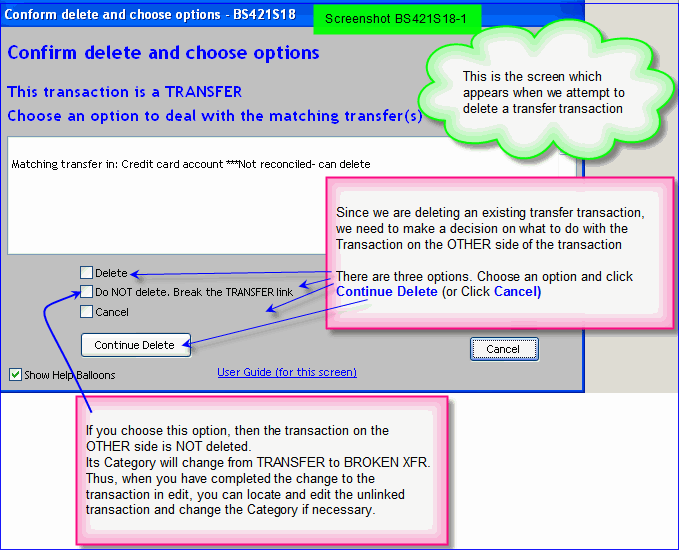
- Click the Delete button
If deleting a Transfer transaction, screen BS421S18 will appear.
Referring to the screenshot, Choose an option and proceed.
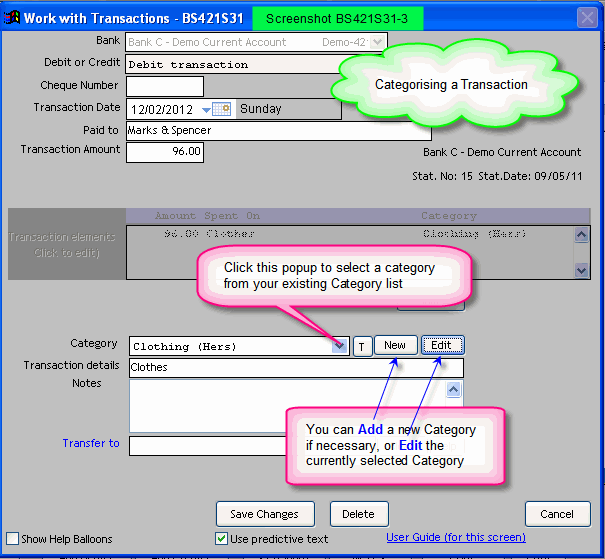
Categorising Transactions
In the initial screen
BS421S01, Add or edit a transaction to arrive at the transaction data entry screen as follows:-
- Bank Genie 4
Refer to this screenshot
- Bank Genie Pro
Referring to this Screenshot click the
Edit (an element) button.
Screen BS421S11 appears.
Referring to this Screenshot:-
Select a Category.
If you have I need to use Sub-Categories
selected in Preferences,you can also select a
Sub-Category.
You can click the New
button if you need to add a new Category or subcategory.
You can click the Edit
button if you need to change the description of an existing Category or subcategory.
When finished, click the nearest OK button. Screen BS421S03 re-appears.
Click either the Add (if adding) or the Save Changes
button
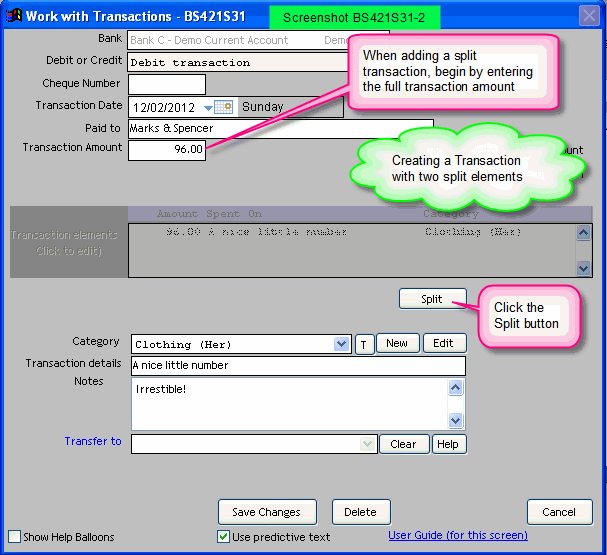
Splitting Transactions
In the initial screen
BS421S01, Add or edit a transaction to arrive at the transaction data entry screen. If using:-
- Bank Genie 4
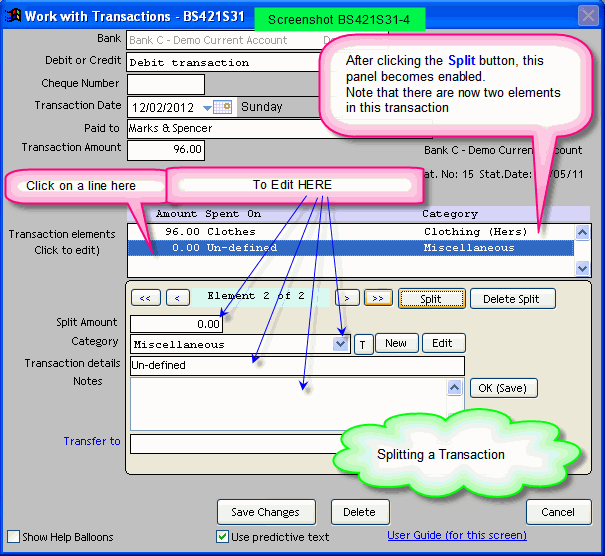
Referring to this screenshot click the
Split button
Bank Genie splits the transaction into two elements as shown in this Screenshot
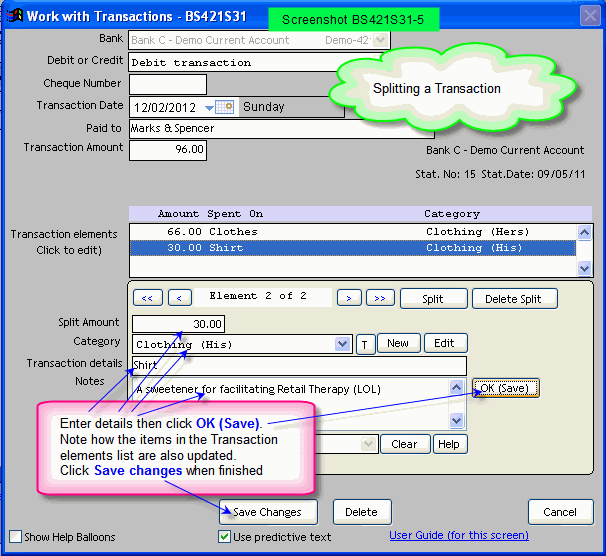
This screenshot shows how it looks after editing the second (new) element
Note: When you enter a value for the second element, Bank Genie automatically changes the value of the first element.
In this case, element No 1 was changed from 96.00 to 66.00 so that the total of the two elements amounted to the total amount of the transaction (hence the reason for adding the full transaction amount first).
- Bank Genie Pro
Referring to this screenshot click the
Split
button
The functionality described above for Bank Genie 4 is built into the screen where you categorise transactions i.e. BS421S11.
Tagging transactions Bank Genie Pro
What are Tags? - Read this Glossary Article
In
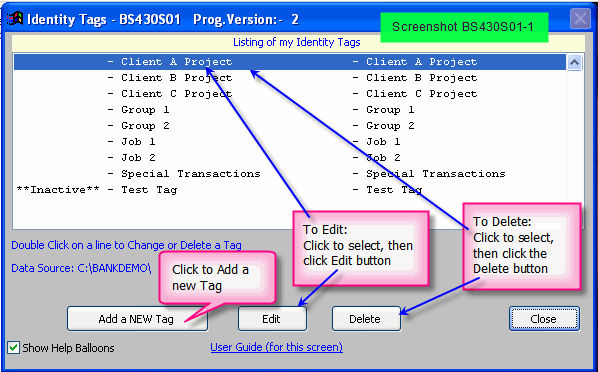
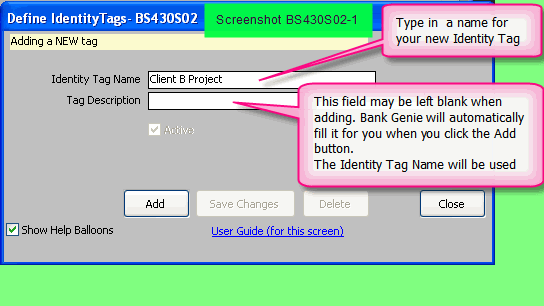
this exercise, you can add a new tag “on the fly”. If you prefer to add a Tag before you start this exercise - Refer to the this Screenshot and this Screenshot
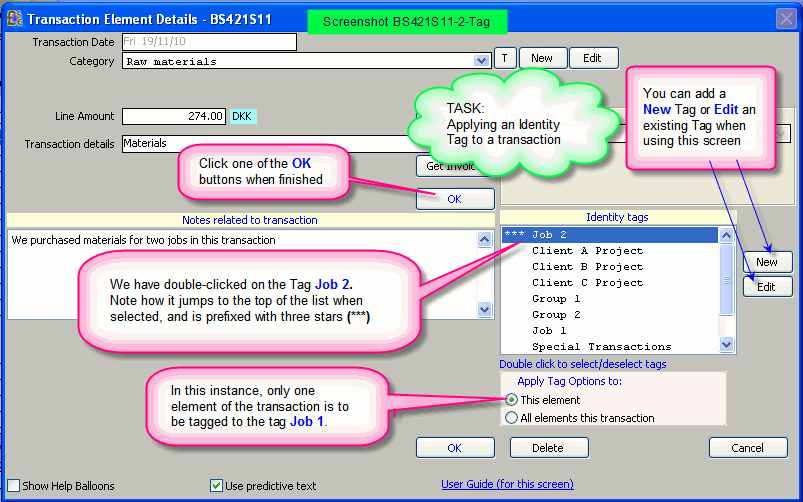
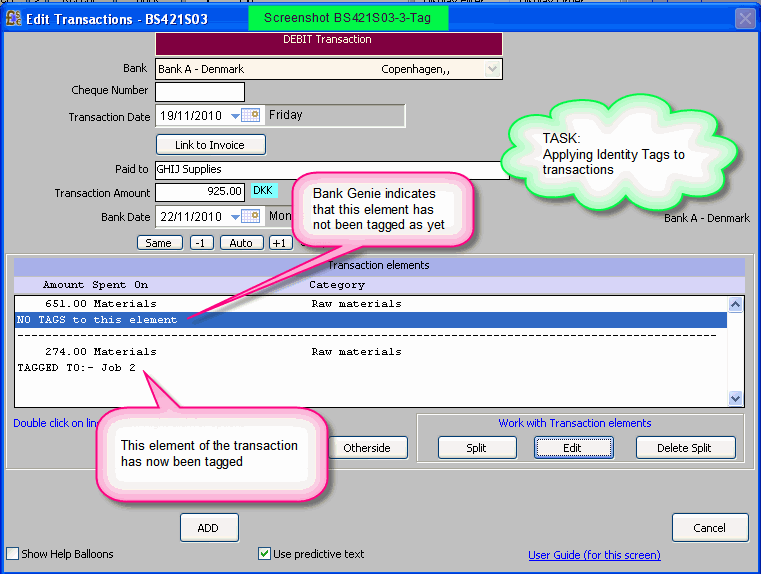
Applying Identity Tags:-
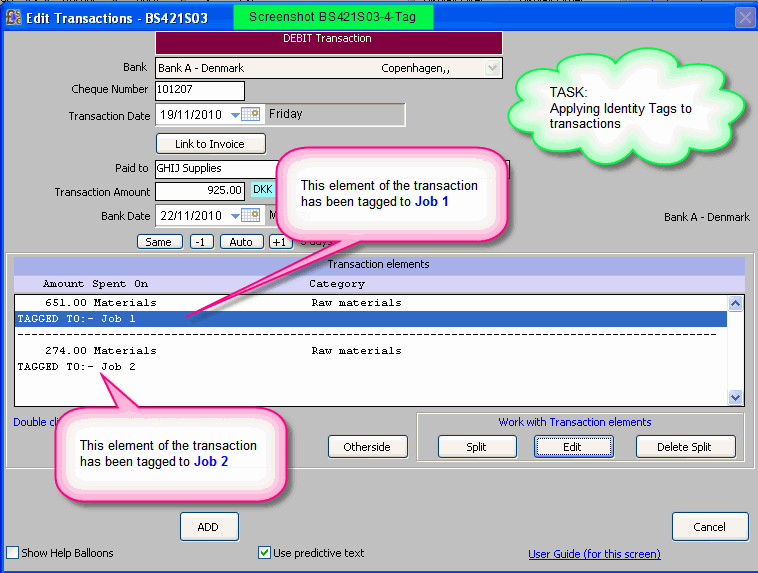
In this example we select the other transaction and do the steps above to apply a tag named Job 1
to it.
This screenshot shows how it looks after applying different tags to the two elements of this transaction.
Click the
Add (or Save Changes
if editing) button to finish the task
About Transfers
These documents are prepared
to introduce you to Transfers, and to explain the concept of Broken Transfers - something quite unique in Bank Genie.
What are Transfers
What are Broken Transfers
Transferring money between Accounts Bank Genie Pro
Transfers are described on the page for screen BS421S11.
Heres the direct links to the
relevant articles:-
Transferring money between Accounts Bank Genie 4
Transfers are described on the page for screen BS421S31.
Heres the direct links
to the relevant articles:-
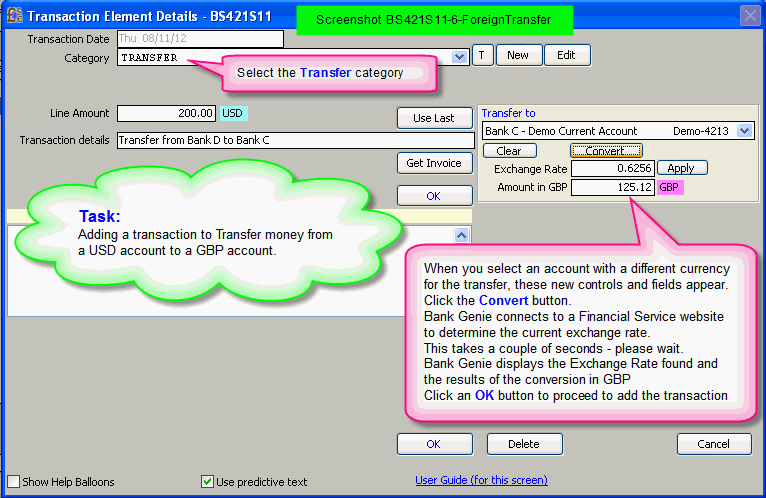
Transferring money to an account in another currency
Bank Genie Pro
- In Preferences BS498, select the option I need to use Foreign Currency features
If you have multi-currency accounts, keep this option enabled at all times.
- in the initial screen BS421S01, add or edit a transaction to arrive at the transaction data entry screen BS421S03
- Enter details here as normal, then doubleclick (or click Edit) on a Transaction element
- Screen BS421S11 will appear
Screenshot of BS421S11 showing the Multi-Currency transfer features
The process (with more screenshots) is explained by an example in the Demo database
Testing Transfers
Bank Genie allows a wide
range of options in Transfers
The software was tested with all variations we could think of, some quite unlikely!
For anyone DEEPLY interested go here:-
Testing Transfers
Adding NON TRANSFER transactions with a foreign currency
Bank Genie Pro
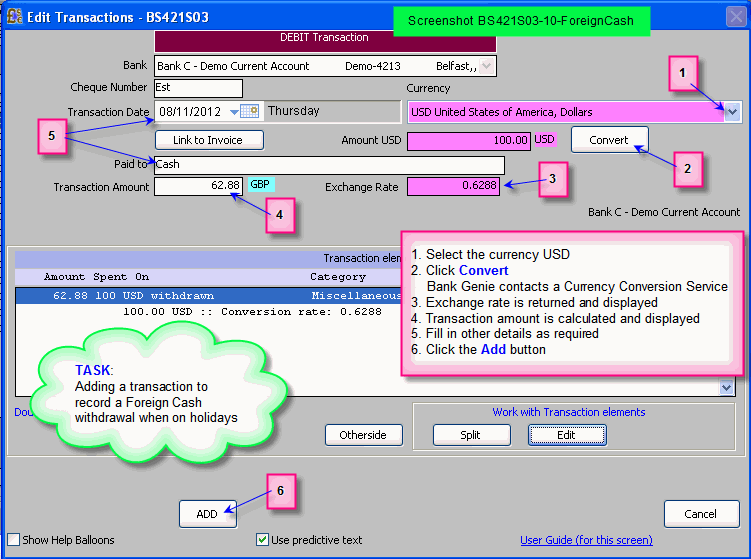
We shall explain this by example.
I live in the UK and visit
America. I withdraw cash in USD from my GBP account at an ATM machine
- In Preferences BS498
, select the option I need to use Foreign Currency features
If you have multi-currency accounts, keep this option enabled at all times
- In the initial screen BS421S01, click Add a Debit
The transaction data entry screen BS421S03 will appear.
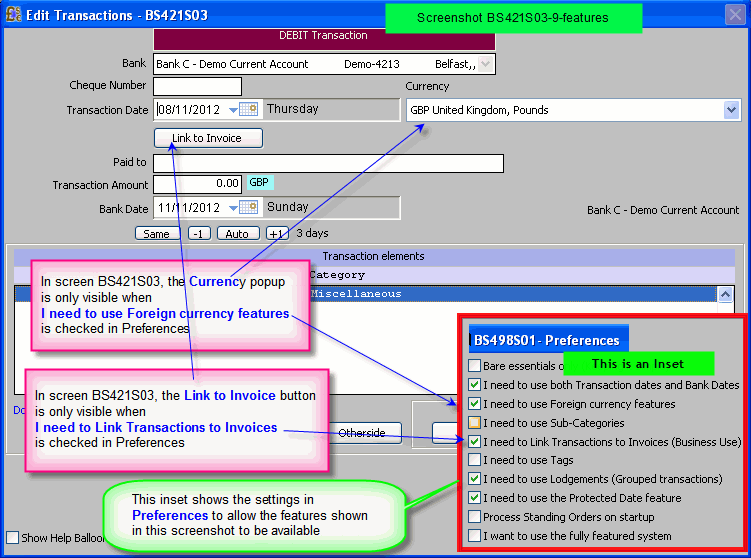
Having set the option I need to use Foreign Currency features in Preferences, the Currency popup will be made visible in this
screen.
Screenshot
- Use the Currency popup and select USD-United
States of America, Dollars
Additional fields will appear as shown in this screenshot
- I enter an amount of 100.00 in the Amount USD field
- I then click the Convert
button
Bank Genie automatically contacts a currency conversion service.
An Exchange rate
is returned and displayed.
Bank Genie uses this and the amount in USD to calculate the amount in GBP.
This is automatically entered into Transaction amount
field and will be used when
adding, as this is the amount which will be withdrawn from my GBP account.
- I fill in other details Screenshot
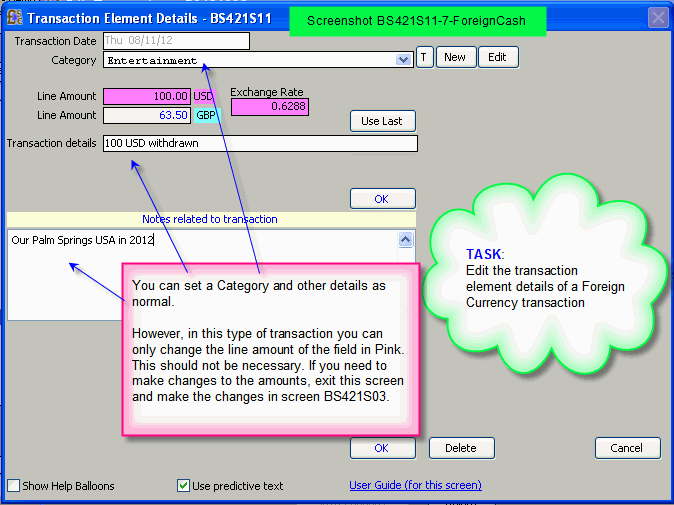
- the transaction element may be edited to set a category.
The screen BS421S11 has this appearance when adding this type of transaction
- I click the Add button
- The next section explains other options when you edit a Foreign Currency transaction
Editing NON TRANSFER transactions with a foreign currency
Bank Genie Pro
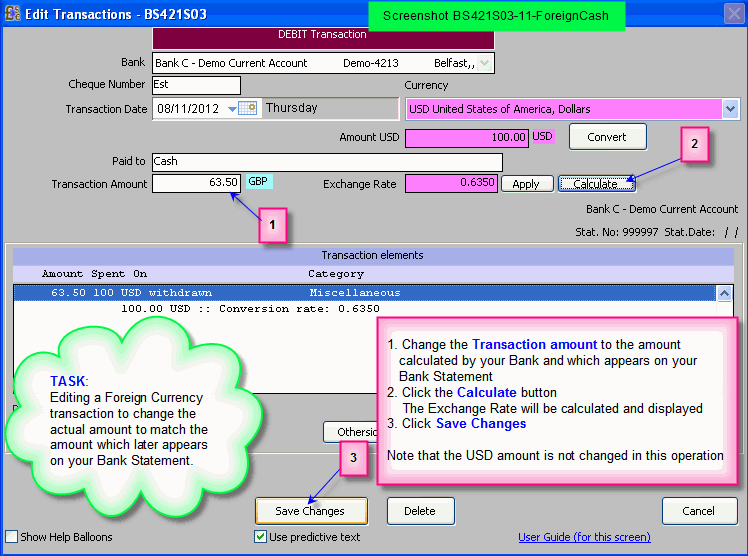
Again, explained by example - Using the data in the transaction
added above
Refer to this screenshot
Fixing a Transaction
If you discover you have made a
mistake after you have added a transaction, this feature allows you to easily make changes.
Click in the transaction list to select the transaction to be fixed
then click the Fix button.
Screenshot BS421S01-1
In the next screen you will be able to:
a) Change the selected
transaction to another Bank
and/or
b) change the transaction type (Credit/Debit)
Note: You must move the transaction to the 999997 statement
to use the Fix button.
You cannot fix transactions which are in a reconciled statement using this tool.
Duplicating a transaction
You may wish to create a new transaction which is very similar
to one in the current statement OR in a previous statement.
First, locate and click on a transaction to be copied
There are now two methods
Method 1 - Using the Copy, Next and Paste set of buttons
Screenshot BS421S01-1
Step 1 - The
Copy button
Having clicked the transaction to be copied, click the Copy
button.
There is no visual indication that the details have been copied - You jes gotta believe
Step 2 - The Next
button
If the transaction you copied is in a PREVIOUS statement, use this button to find the unreconciled statement where you wish to add the NEW transaction.
Tip: Watch the Reconcile
button while you click. The Reconcile button is a grey shade (disabled) for Previous
(reconciled) statements. When it goes black, you have reached the most recent (un-reconciled) statement.
Step 3
Click on the Paste button to duplicate the transaction "Copied" in Step 1 (above)
The program will open screen BS421S03 (BG Pro) or screen BS421S31 (BG4) with the data fields filled.
You may then edit and add the new transaction.
The
Copy, Next and Paste
buttons are arranged in a block for your convenience.
Method 2
- Using the Menu options when you right click.
Step 1 RIGHT click on the transaction to be copied.
A shortcut Menu appears.
Click the Copy option
Step 2 - Use the Next
button (if necessary) as described in Method 1
Step 3 RIGHT click on any line
The shortcut Menu appears.
Click the Paste option
Again, the program will open screen BS421S03 (BG Pro) or screen BS421S31 (BG4) with the data fields filled.
You may then edit and add the new transaction.
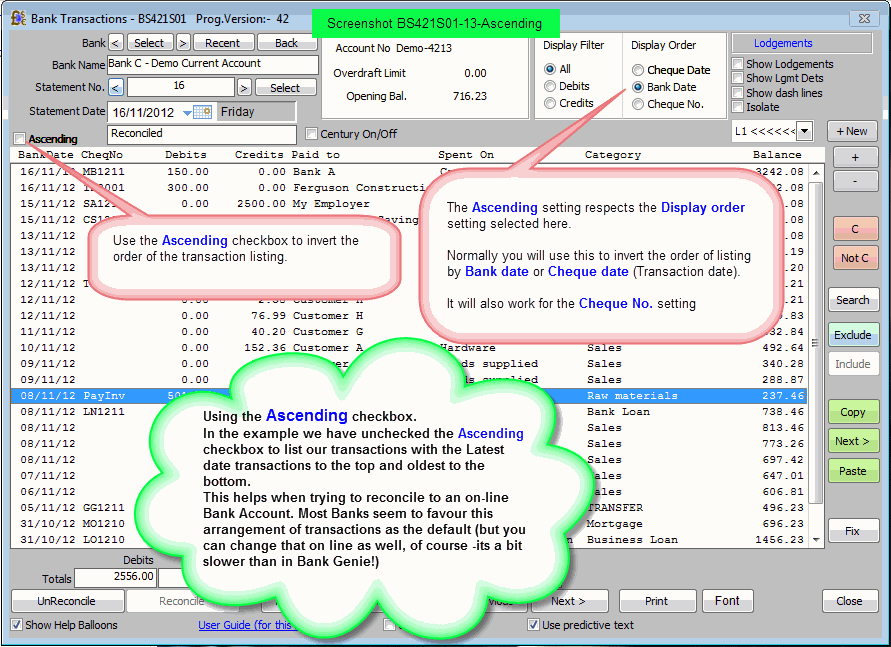
The Ascending button
Use the Ascending checkbox to
invert the order of the transaction listing
Referring to screenshot BS421S01-13-Ascending
The Ascending checkbox setting respects the Display order
settings.
Normally you will use this to invert the order of listing by Bank date or Cheque date (Transaction date).
It also works for the Cheque No. setting.
The most common application will be when you are reconciling your transactions to an on-line Bank Account. Most Banks seem to favour the descending dates arrangement as their default.
You can change that on line as well, of course -but its a bit slower than in Bank Genie!
About reconciling
Use the Reconcile feature
in Bank Genie to close off a selection of transactions which tally up to a Statement sent by your bank.
If your bank doesn’t supply statements, you
can also use the Reconcile feature to close off a selection of transactions which exactly match the status on your online account.
In the absence of statement
numbers, simply allow Bank Genie to increment the “statement numbers” when you do a reconciliation, and think of the statement numbers as
Reconciliation numbers. The actual value of the numbers can be ignored, but the Statement Date
which you enter when you create a reconciliation is important (in the program Net Worth-BS418).
Once transactions are closed off
in Reconciled Statements in Bank Genie they don’t have to be considered next time you go online to check your status.
Reconciling a statement
In Bank Genie, the first Statement Number for each account is defined when you set up the Bank Account using the program My Bank Accounts - BS403
Begin reconciliation by setting the Display order in BS421S01 to Bank Date.
These controls can be seen in this screenshot
When a
Bank Statement arrives, or you compare Bank Genie to your online account, the closing balances may not agree (reconcile) with your Bank Genie figures.
You will
probably find that:
- there are some transactions on the statement which are not yet added to Bank Genie
- there are extra transactions in Bank Genie which have not yet reached your account
In the first case you simply add missing transactions using this program.
In the second case, Bank Genie allows you to temporarily exclude transactions which have not yet reached your account so you can reconcile to the current statement or online status.
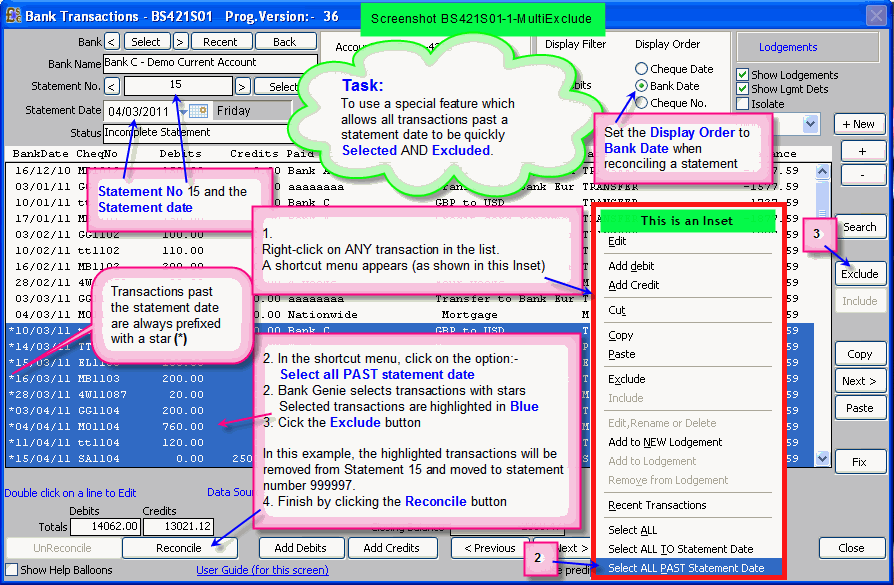
Tip: Refer to this screenshot to learn how to quickly exclude transactions which are past the statement date for reconciliation.
Excluded
transactions are moved to a temporary or fictitious statement with a statement number 999997.
To move transactions back from Statement 999997 for inclusion in
the statement being reconciled, go to the Statement 999997 (its the very last statement) - select the required transaction(s) and click the Include
button. Selected transactions are moved from 999997 to the statement being reconciled.
Typically, a statement has:
- a Statement Number
Once you have set the initial statement number, Bank Genie will automatically increment the statement numbers for you
- a Statement Date
You will be required to enter a Statement Date.
Screenshot BS421S01-1
- an opening balance
This is carried forward from the last statement
- a closing balance
Screenshot BS421S01-1
This you must arrive at using the features described in this section
When the transactions and Closing Balance in Bank Genie match the listing on your Statement,
click the Reconcile
button.
Bank Genie then flags this statement as complete, and creates the NEXT Statement Number. Transactions which were NOT reconciled are assigned to either the next Statement number, or to the 999997 statement number.
Here's the rules, based on the
Statement Days value which you specified when you created the Bank Profile in program My Bank Accounts BS403:
- Bank Genie adds the number of Statement Days
to the Statement Date of the statement which you reconciled, and assigns this as the Statement Date
for the next statement.
- Transactions which are BEFORE or equal to this new statement date will be assigned to the new statement.
- Transactions which are AFTER this new statement date will be assigned to the 999997 statement.
Once you have reconciled a Bank Statement you cannot add or delete any more transactions to that statement.
Instead, you can use the Undo button to un-reconcile
the LAST reconciled statement.
The Exclude button
Screenshot BS421S01-1
Use this button when reconciling a statement.
If a transaction does not appear in the statement being reconciled then
highlight the transaction then click on the Exclude button.
The transaction will be moved out to the 999997 statement (a fictitious statement)
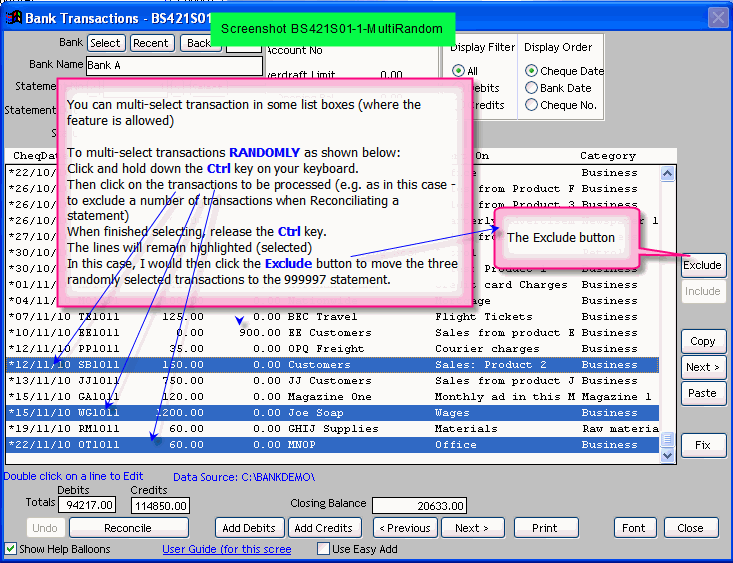
Note: You can Multi-select transactions when using the Exclude button
Multi selecting Randomly: See Screenshot BS421S01-1-MultiRandom
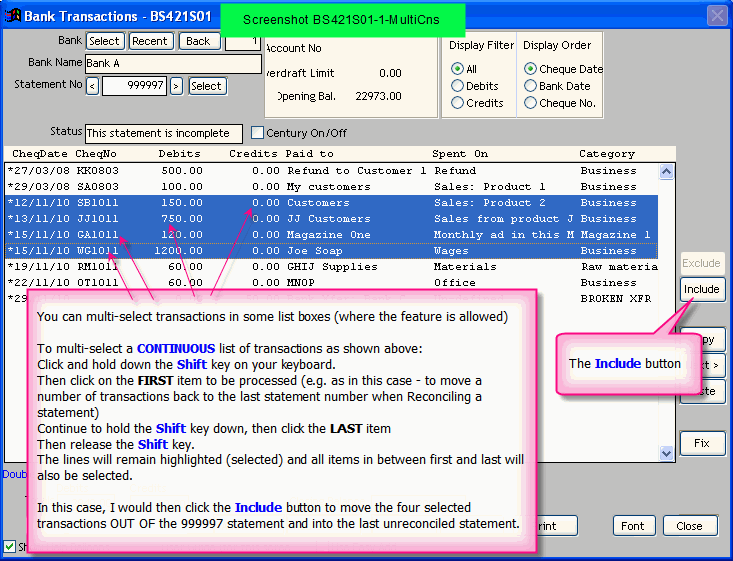
Multi selecting continuously: See Screenshot BS421S01-1-MultiCns
The Include button
Screenshot BS421S01-1
This button is enabled when the 999997 statement is selected (ONLY)
If a transaction is located in
the 999997 statement and it needs to be moved into the statement being reconciled, then highlight the transaction and click on the Include
button.
The transaction will be moved out of the 999997 statement and into the last statement, provided it is NOT already reconciled.
Note: You can Multi-select transactions when using the Include button
Multi selecting continuously: See Screenshot BS421S01-1-MultiCns
Multi selecting Randomly: See Screenshot BS421S01-1-MultiRandom
The UnReconcile button
Screenshot BS421S01-1
Use this button to reverse the status of the latest Reconciled Statement.
More Info
Use this button if you have made a mistake e.g. if the closing balance in Bank Genie does not match the closing
balance on your statement
- To UnReconcile a single statements
You can only UnReconcile
the last reconciled statement.
Go to the last Reconciled statement and click the UnReconcile
button.
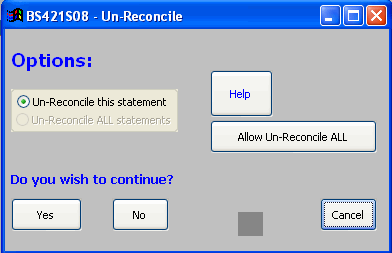
Screen BS421S08 appears.
Screenshot
Click the Yes
button.
If you need to go back further, then start on the last statement and unreconcile the statements in reverse order.
- To UnReconcile ALL statements (in this Bank Account ONLY)
Be VERY sure you wish to UnReconcile
all statements before using this feature.
It is NOT reversible. If not sure, do a Backup before proceeding.
Go to the last Reconciled statement and click the
UnReconcile button.
Screen BS421S08 appears.
Screenshot
Click
the Allow Un-Reconcile ALL
button.
A message box is displayed with a reminder of the irreversibility of the action you are about to take. (This extra step and the message is for additional security)
Check the
Un-Reconcile ALL statements checkbox.
Click the Yes button.
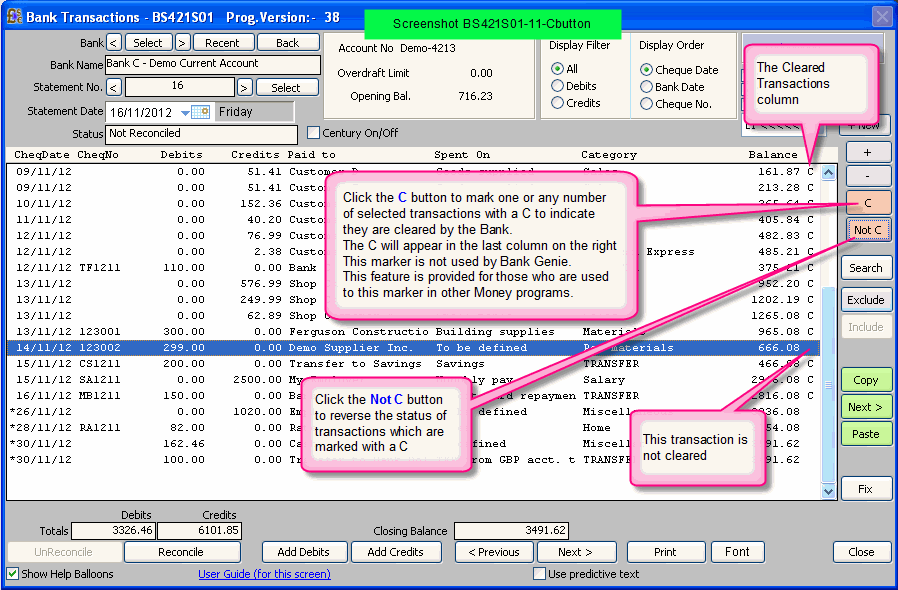
The C button
Referring to this Screenshot
Use this button to mark one or any number of selected transactions with a C to indicate they are cleared by the Bank.
The C will appear in the last column
on the right
This marker is not used by Bank Genie.
This feature is provided for those who are used to this marker in other Money programs.
The
Bank Genie method is to Exclude transactions which are not cleared by the Bank, and you will need to do this when reconciling a statement.
The Not C button
Referring to this Screenshot
Use this button to remove the C marker from one or any number of selected transactions.
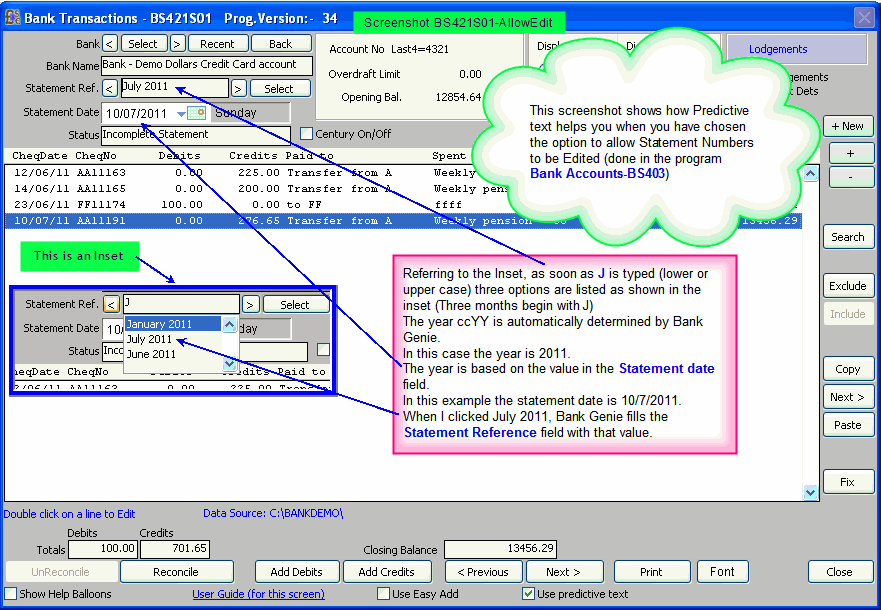
The Use Predictive text checkbox
Predictive text helps you when entering Statement References.
Read the next item to
see how it works in this screen.
Editing the Statement Ref(erence) field
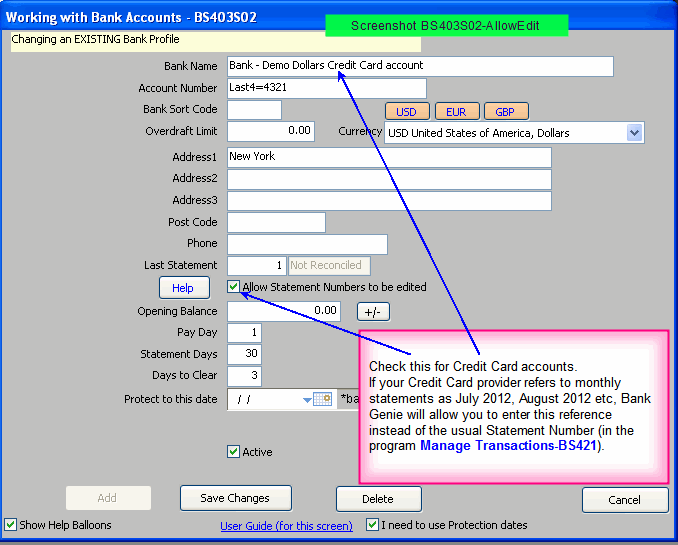
Credit card accounts (for example) use Statement References, rather than Statement
Numbers.
To align with that statement reference format, check the Allow Statement Numbers to be edited checkbox (Screenshot) in the program Bank Accounts-BS403
When
you select a Bank with this setting in BS421, you can enter the reference shown on the Credit Card Statement e.g. July 2011. A maximum of 14 characters are
allowed.
The predictive text feature in Bank Genie makes this very quick and easy.
The Use Predictive Text
checkbox must be checked for this to work.
Screenshot BS421S01-AllowEdit
Behind the scenes, Bank Genie
maintains statement numbers as normal.
Thus, if you find it is too much trouble to enter Statement References, you can revert to Statement Numbers at any time
(or indeed vice versa, and details entered previously are restored).
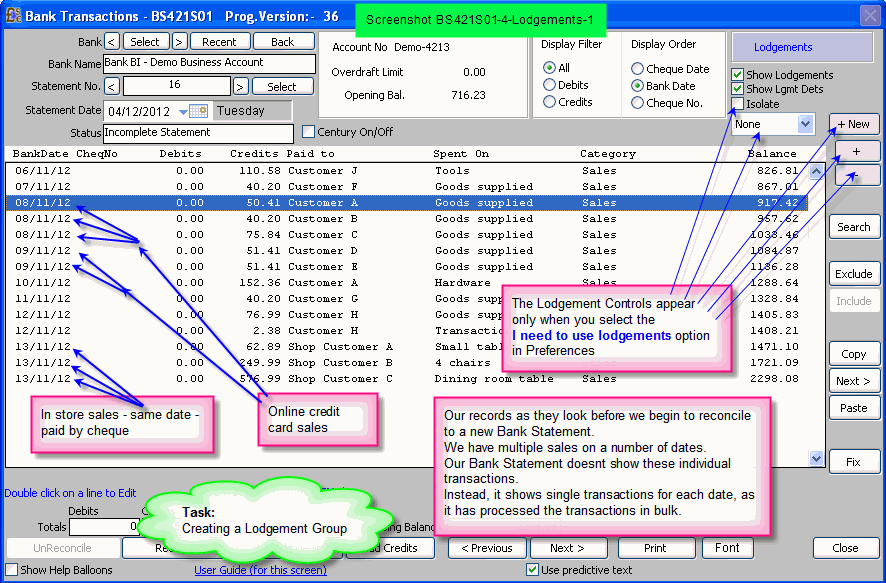
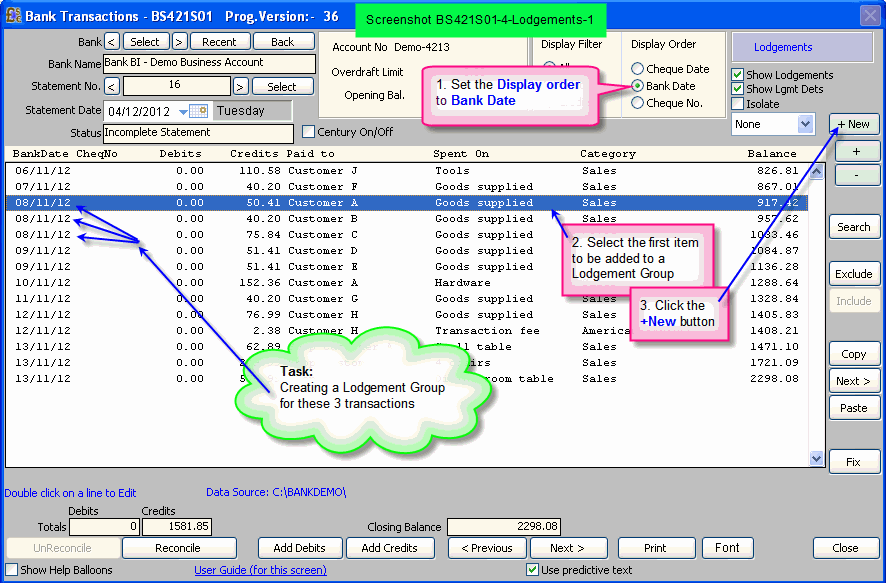
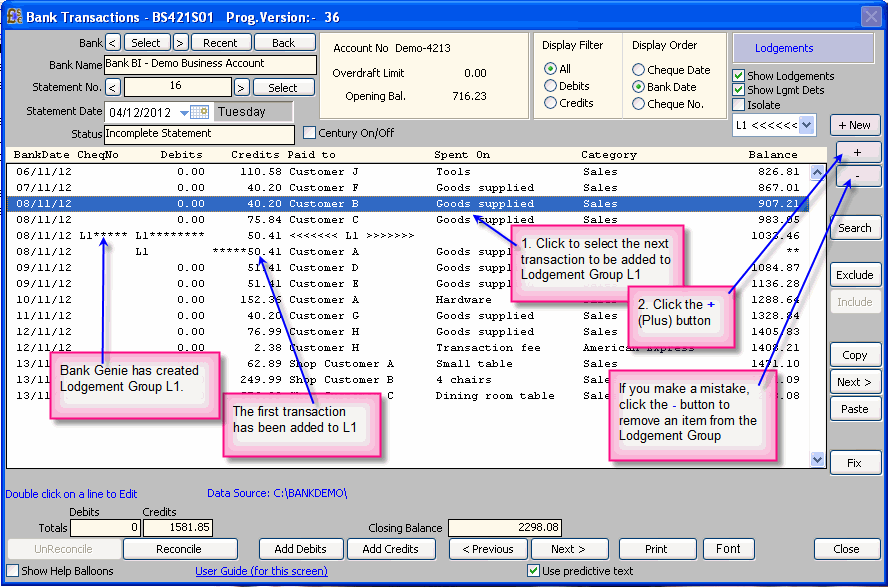
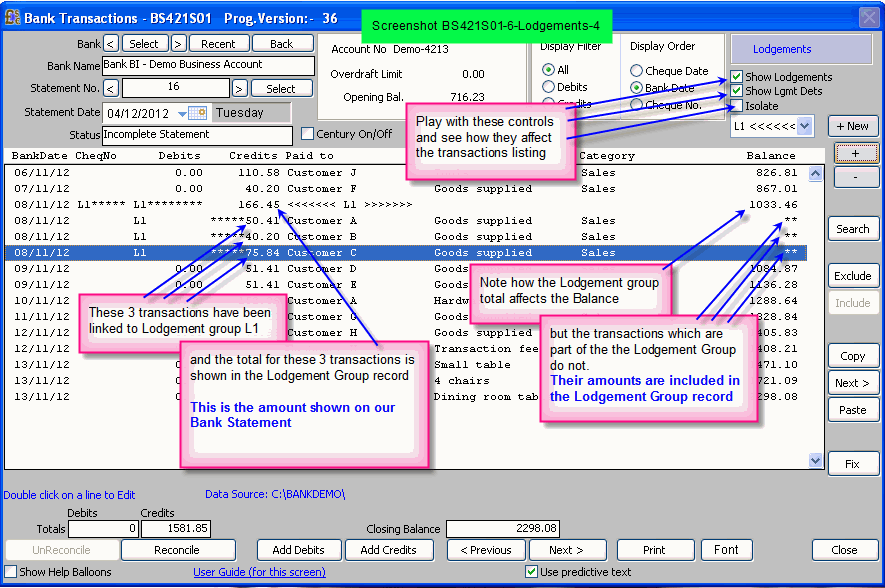
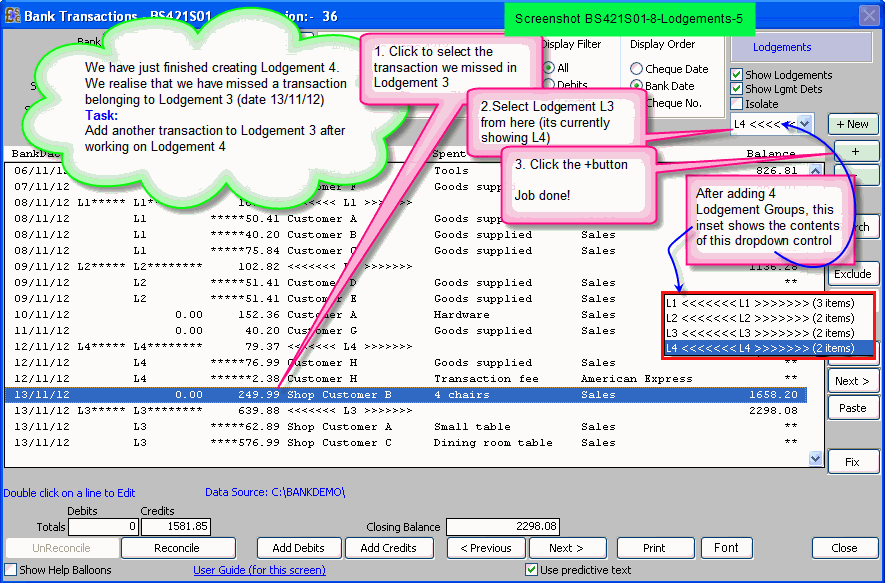
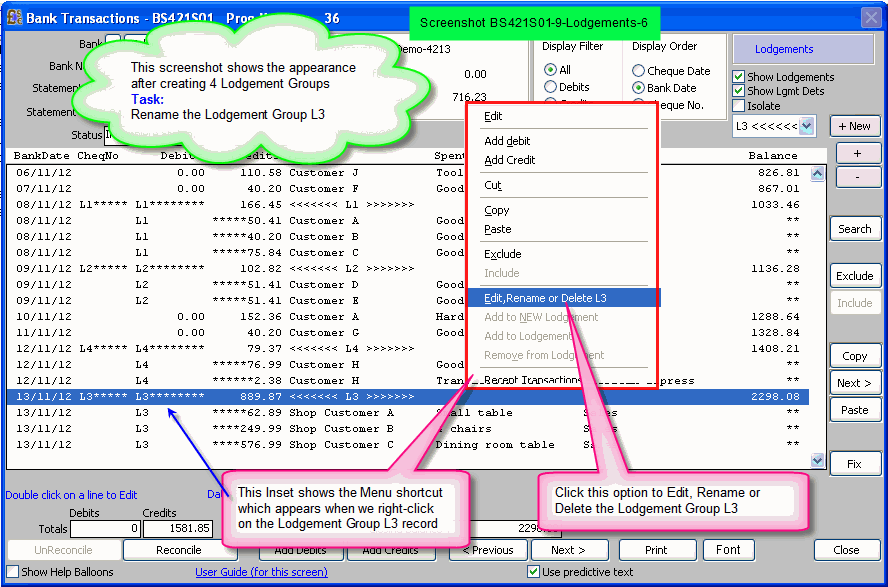
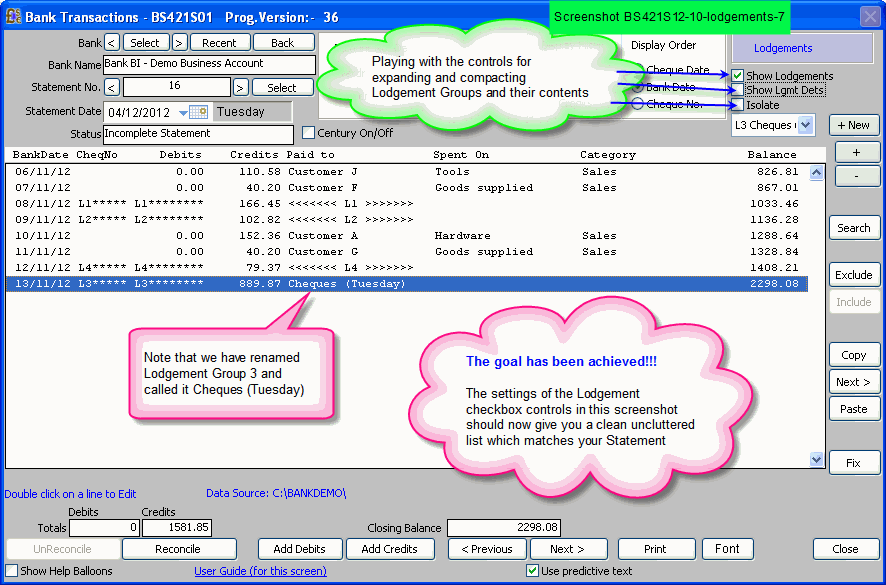
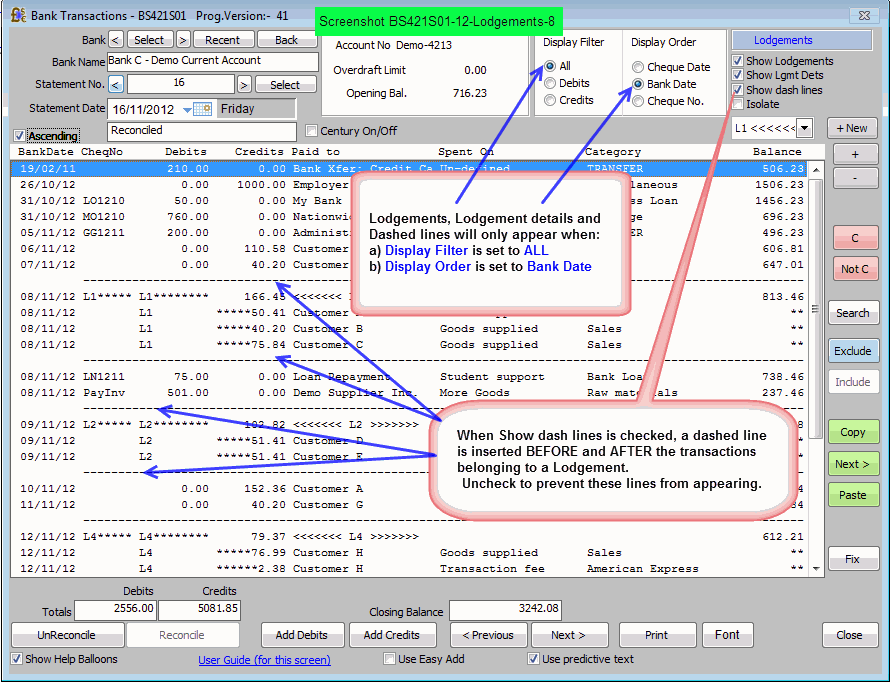
Lodgements and Lodgement Groups
The concept of Lodgement Groups and how to use Lodgements is explained in the section:-
Working with Lodgement Groups
Invoices
Invoices can be linked to transactions in this program, or in the program Invoices - BS427
To
allow transactions to be linked to Invoices you must:
- enable the option I need to link transactions to Invoices in Preferences Screenshot
- uncheck the Easy Add checkbox in screen BS421S01
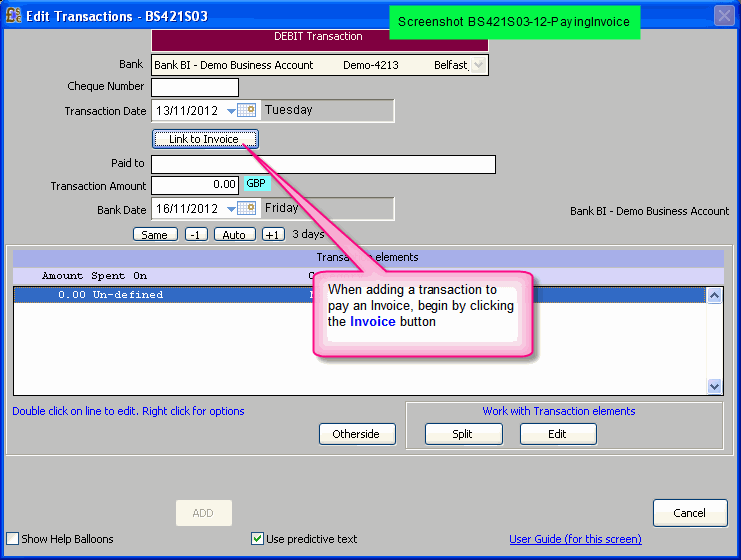
1) To add a transaction to pay a Supplier Invoice:-
- Click Add Debits in this screen - BS421S01
- Screen BS421S03 appears
Screenshot
- Don’t enter any details yet.
Click the Link to Invoice
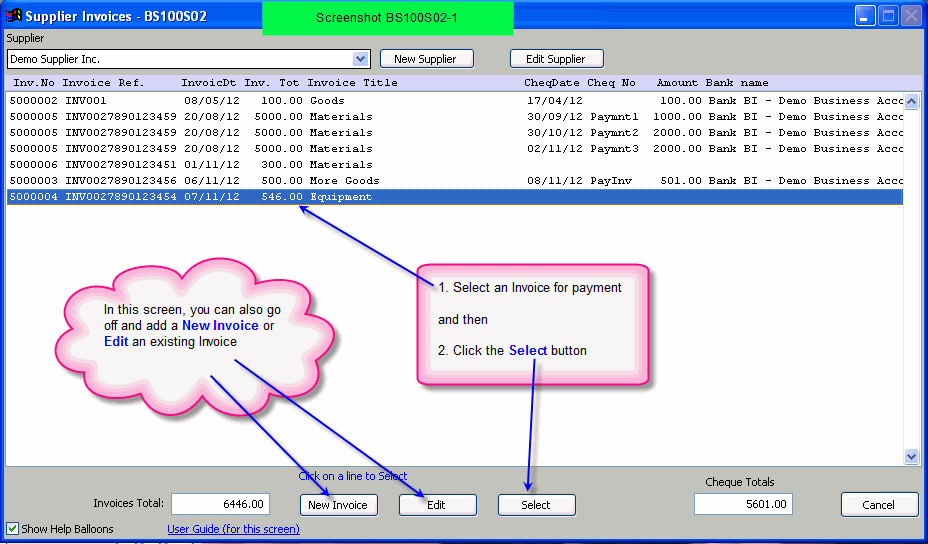
button. Screen BS100S02 appears
Screenshot
- Click on an Invoice for payment in screen BS100S02 and click the Select button
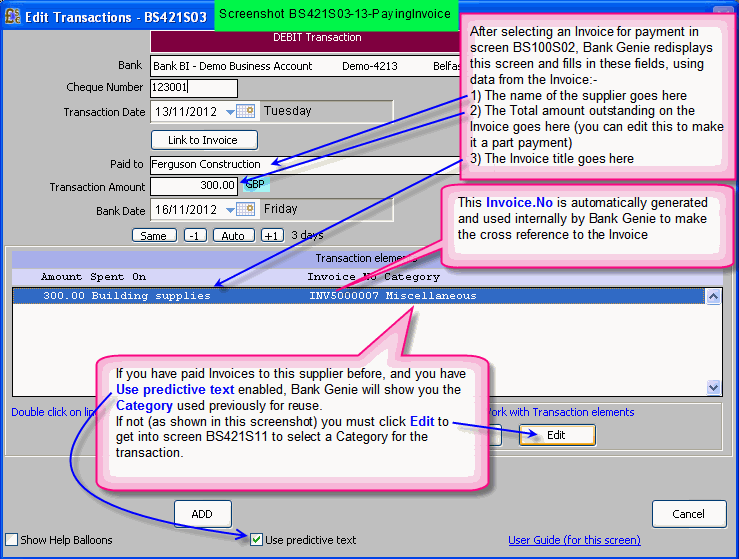
- Screen BS421S03 will reappear
- Referring to this screenshot, enter the remaining details and click Add
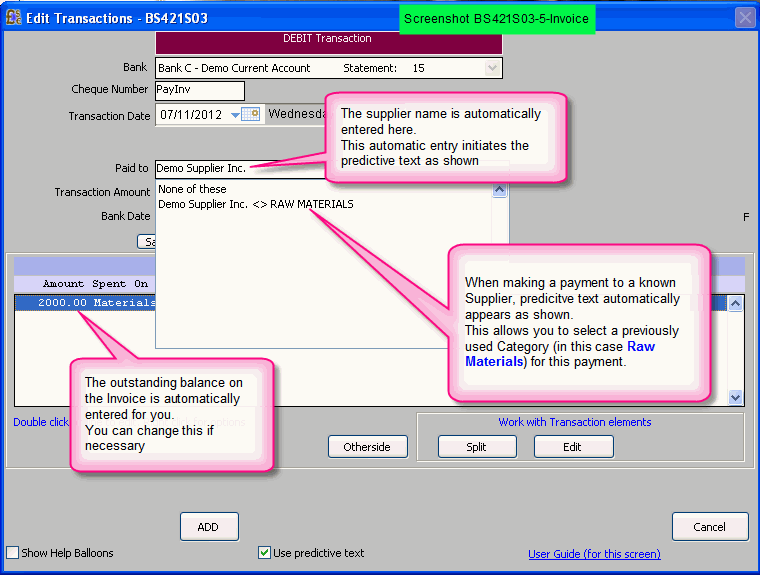
Heres another screenshot showing Predictive Text in action when you pay a second Invoice to a known supplier.
2) To edit a non-invoice transaction and link it to an Invoice
- Double click on the transaction in screen BS421S01
- Screen BS421S03 appears
Note that the Link to Invoice
button does NOT appear when editing a normal transaction.
- In the Transaction Elements panel, click Edit
Screen BS421S11 appears
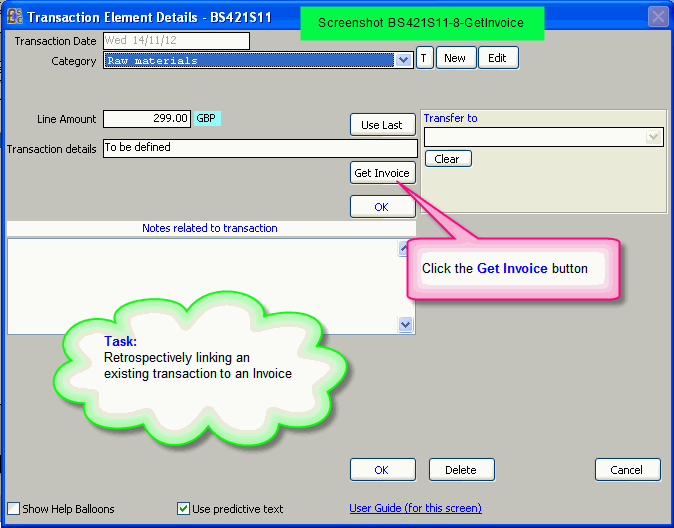
- Referring to this screenshot, click the Get Invoice
button. Screen BS100S02 appears
Screenshot (Demo only - Not the same Invoice as used in the next step)
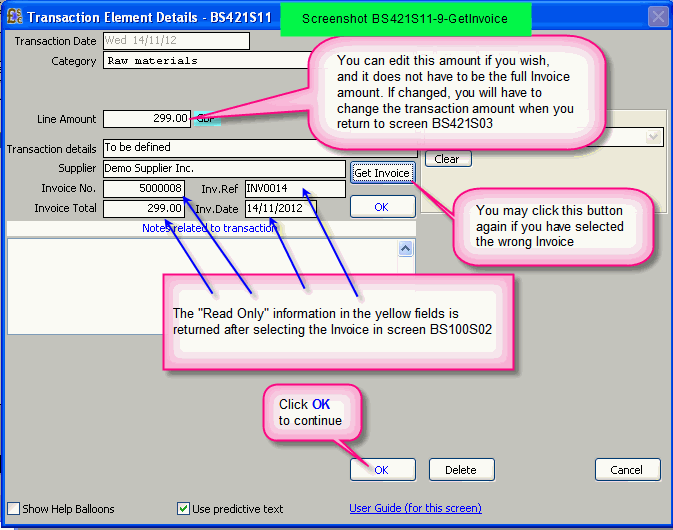
- Screen BS421S11 re-appears
Screenshot
- Click OK and finish the transaction changes
3) To fix a transaction which has been linked to a wrong Invoice
Go through the steps for Item 2 to get into
screen BS421S11
Referring to this screenshot, click the Get an Invoice button to select another Invoice
More features - Right Clicking on transactions
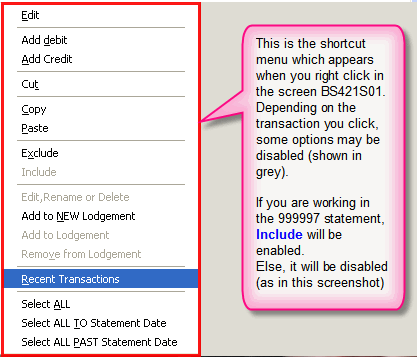
Explore
the options available to you when you right click on a transaction.
Screenshot
Example:
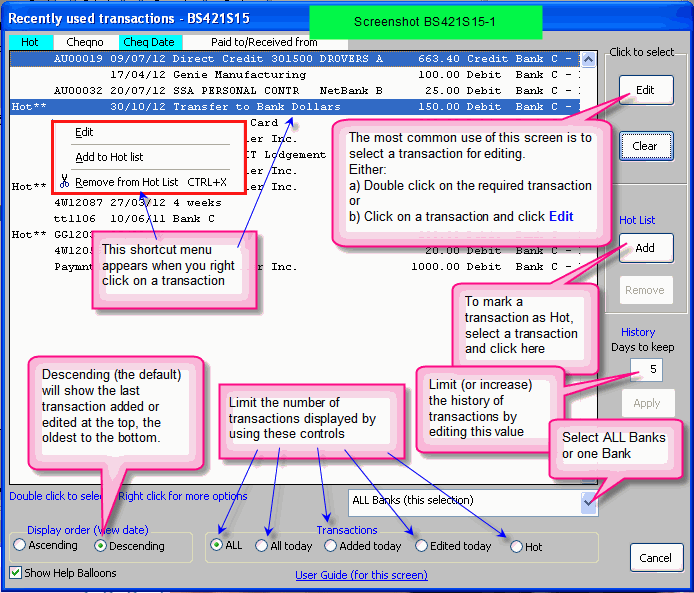
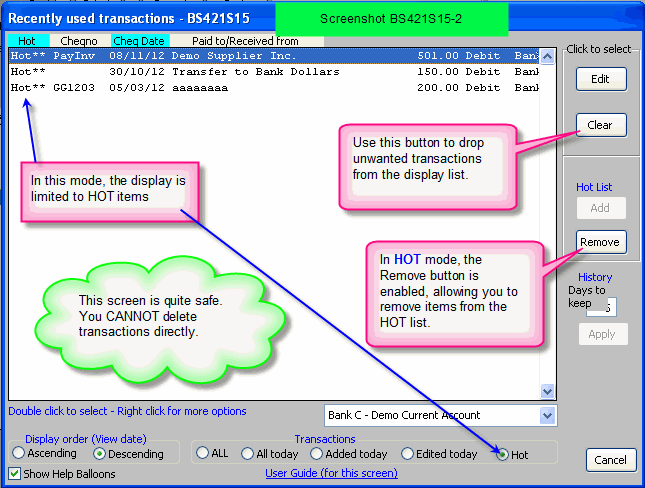
Recent Transactions
This screenshot and this screenshot show what you can do when you right click on a transaction and
select Recent Transactions
Summary of screenshots for screen BS421S01
Other screens (leading to screenshots) for program BS421
|